
Transcribe Audio to Text Online: Free Guide
Transcribe audio, podcasts, MP3s, and videos to text online with a practical upload workflow, accuracy tips, and an honest limited free tier.
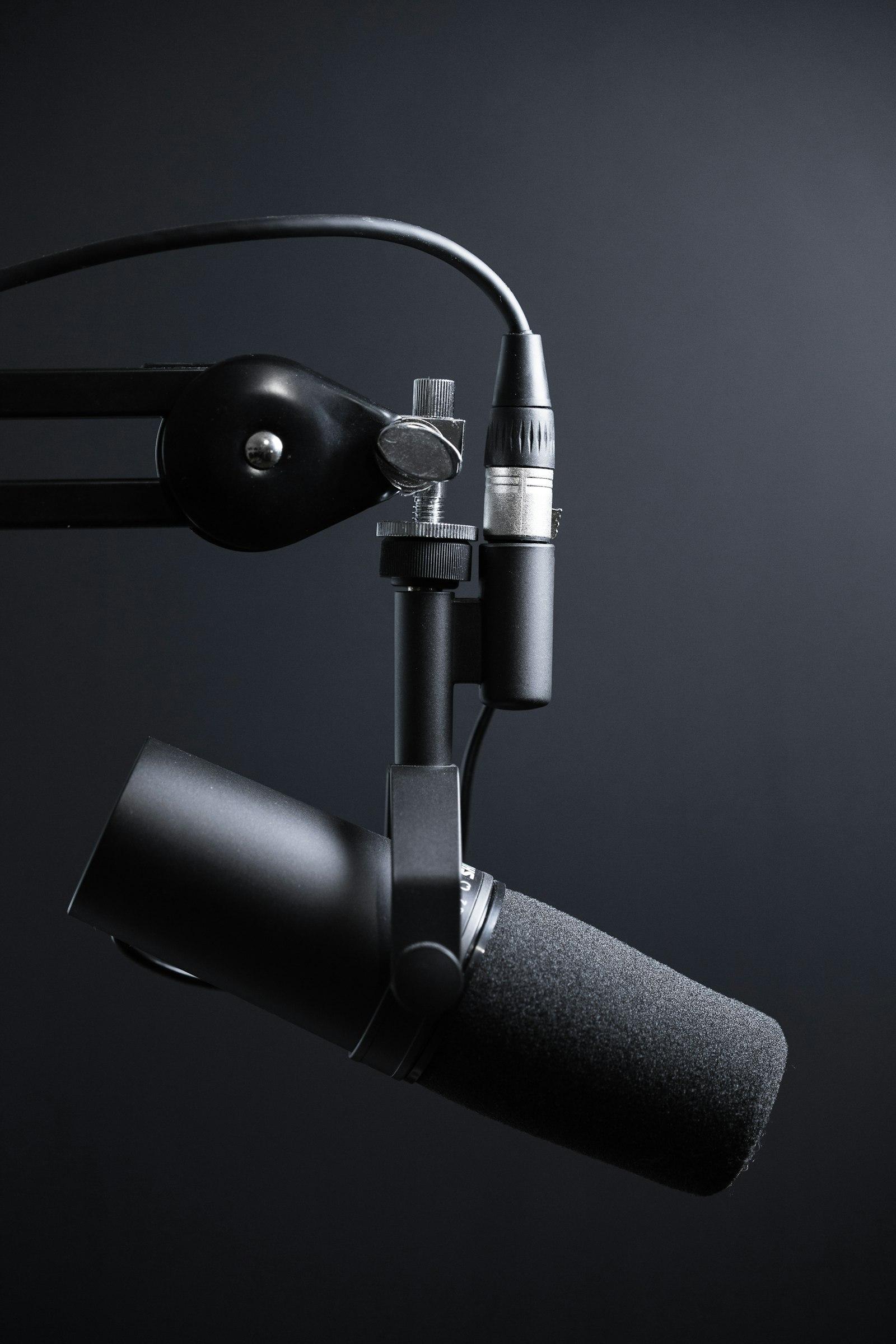
Whether you have a podcast episode, a Zoom export, or a voice memo from the field, learning how to transcribe audio to text online saves hours of manual typing. Modern AI makes the conversion fast; the real skill is choosing the right workflow so the output is accurate, searchable, and useful beyond a one-time export. Podcasters can start with free podcast transcription, then transcribe podcast to text and reuse the output as a podcast transcript generator for show notes and accessible archives.
This guide covers free versus paid options, supported formats, a step-by-step upload workflow, and practical tips to get cleaner text from MP3, WAV, M4A, and video files. For guest demo and free tier details, see the free audio transcription hub.
Free vs paid audio to text tools
Free transcription is fine for short clips and experiments. Limits usually appear quickly: monthly minutes, watermarking, no team sharing, or no cross-file search. Paid tools add workspace storage, faster processing, AI summaries, and permissions for colleagues.
Before committing, estimate how many minutes you transcribe per month and whether you need to keep files indefinitely. If the answer is more than a few hours, a plan-based product is typically cheaper and less fragmented than stitching together free tiers. For a broader comparison of vendors, read our speech to text software guide.
Supported formats and uploads
Most online audio to text services accept standard formats:
- Audio: MP3, WAV, M4A, AAC, FLAC, OGG
- Video: MP4, MOV, WebM (audio track extracted automatically)
- Recorded in-browser: some platforms let you record directly, then transcribe without a separate export step
Check maximum file size and duration. Interviewers working with two-hour podcasts and operators uploading conference keynotes hit different limits than someone transcribing five-minute stand-ups.
Step-by-step: transcribe audio to text online
1. Prepare your file
Export the best quality you have. If your meeting platform offers separate audio-only downloads, use them for smaller uploads. Trim leading silence if you are comfortable doing so—it does not change meaning but can speed processing.
2. Choose language and settings
Set the spoken language when the tool allows it. Auto-detect works for many cases, but explicit selection helps mixed-accent teams and specialized vocabulary in languages such as Arabic or English.
3. Upload and queue
Drag the file into the upload area or select it from disk. On StrikeScribe you can try from the homepage without an account; registered users upload inside the dashboard for storage and team access.
4. Wait for processing
Status indicators show when transcription is running and when it completes. Longer files take longer; you do not need to keep the tab open if notifications are enabled.
5. Review, search, and export
Open the transcript, skim for obvious errors in names or numbers, and use search to jump to keywords. Export to text or copy sections for reports. If your platform offers AI insights, run summaries or action-item templates on the same file.
Tips for better accuracy
- Record closer to the microphone in physical meetings; avoid room echo.
- For remote calls, ask participants to mute when not speaking.
- Split extremely long files only if the tool requires it—otherwise one continuous file preserves context.
- Add a custom vocabulary or glossary if your vendor supports domain terms (product names, medical codes, etc.).
- Re-transcribe from a cleaner source if the first pass used a heavily compressed phone recording.
Common use cases
Podcast transcription
Podcasters use audio to text to publish show notes, quote pull-outs, and accessible transcripts for listeners and search engines. Pair the transcript with a short AI summary for newsletter blurbs.
Interview transcription
Journalists and researchers mark timestamps, highlight quotes, and export segments. Search across past interviews when a source reappears in the news.
Meeting and webinar archives
Operations teams make recordings discoverable. Instead of scrubbing video, stakeholders search for decisions, dates, and owners. For structured outputs, see AI meeting notes.
Repurposing transcripts for content and SEO
A raw transcript alone rarely ranks well. The winning pattern is to publish a structured article—with headings, summary, and FAQ—alongside a collapsible full transcript. Extract entities and questions people asked during the recording; those map naturally to subheadings and FAQ schema. Internal links to product and pricing pages should feel editorial, not forced.
Next steps
Pick one representative file and run it through your candidate tool today. If you need team storage, transcript search, and custom AI templates, create a free StrikeScribe account after you try the guest upload. Compare plans when your volume outgrows the free tier.